Apple Intelligence Is Quietly Eating Your Mac's Storage. Here's How to Get It Back.
Bottom line: Apple Intelligence, introduced with macOS Sequoia 15.1 in 2024, requires a chunk of disk space for its on-device models (Apple cites roughly 7GB), and some users report much larger drops in free space that they attribute to its local processing and indexing.
The cause of those larger drops is unconfirmed, but if you're short on storage, especially on a base model Mac, turning off Apple Intelligence and checking what is using your space is one way to reclaim it.
Your Mac's new brain may be stealing your storage.
After watching my own M3 MacBook Air's available space shrink by 48GB in roughly 10 weeks of running macOS 27, I started to wonder whether Apple Intelligence isn't just a smart assistant but also a silent data hog that could be costing you valuable disk space.
I can't prove that, but it's worth talking about the hidden cost of on-device AI.
The Myth of Seamless, Lightweight AI
For years, Apple has championed "on-device intelligence" as the holy grail of privacy and performance.
We were told that by processing data locally, AI features would be fast, secure, and wouldn't burden your internet connection or the cloud. It sounded like magic.
Apple keynotes and many reviewers praised the integration of features like Safari summaries, Writing Tools, and Notification Summaries.
I get it. The promise of an AI that truly understands your personal context, without sending it all to a server farm, is incredibly appealing.
We’ve been conditioned to believe that if it’s on-device, it must be efficient and discreet.
Two years ago, when these features were in their infancy, that may have been true.
But as Apple Intelligence expands to cover more of your digital life, the amount of data it needs to store and process locally may be growing too.
The narrative of lightweight, on-device AI is worth challenging.

The Evidence: Your Shrinking SSD
The proof, such as it is, is in the gigabytes that are no longer there. Since macOS 27 arrived this fall, some users on developer forums and Reddit have reported unexplained drops in free disk space.
These are anecdotal reports, and I haven't seen a confirmed explanation.
#### The Invisible Data Lake
Apple Intelligence uses on-device models and, for personal context features, some form of local index of your content.
One plausible explanation for the missing space is that this index, along with embeddings and cached versions of content used to feed the local language models, grows as you use your Mac.
Apple hasn't published a breakdown of how much space these components use, so this remains a hypothesis.
If that is what's happening, parts of the processed representation of a file might linger even after you delete the original.
That would add up to an invisible data lake on your SSD, but again, I can't confirm it.
#### The 30GB-70GB Bloat
My own M3 MacBook Air, with a modest 256GB SSD, saw its free space drop from 70GB to 22GB in about 10 weeks of regular use, despite no significant new file downloads or software installations.
This is an anecdotal, unverified observation, and I can't prove the cause, but the 48GB drop coincided with my increased reliance on Apple Intelligence features like Writing Tools in Mail and "Summarize" in Notes.
Other users have posted similar stories, including some on 512GB and 1TB Macs, but I haven't verified any of them.
If real, the impact would be most severe on base model Macs, where every gigabyte counts.
For many, this isn't just an inconvenience; it forces difficult decisions about offloading photos, videos, or even essential applications.
#### Aggressive Caching and Redundancy
Why might it get so big? One possibility, beyond indexing, is caching. When Safari summaries analyze a long web page, the system may cache the processed output or intermediate results for future use.
Caches like this are designed to make subsequent interactions faster, but they take up space.
Similarly, many AI features create new data.
When you ask Apple Intelligence to summarize a long document or transcript, it generates new text, and any later search or indexing of that summary could add yet another layer of data.
If the system prioritizes speed and context recall over efficient storage, the result could be a duplicated data footprint across various hidden system directories.
Apple hasn't documented this, so treat it as informed speculation.
The Real Problem Nobody Talks About
The shrinking SSD is just the symptom. The deeper problem, in my view, is transparency. Fundamental resource allocation decisions are made largely out of the user's sight and control.
There is no easily accessible "clear Apple Intelligence cache" button. There's no breakdown in Disk Utility or Storage settings showing how many gigabytes Safari summaries have consumed.
We're left to guess, to troubleshoot blindly, and to accept that our devices are making storage decisions for us. This opacity, dressed up as "simplicity" and "privacy," limits granular user control.
Apple does let you turn Apple Intelligence off entirely, but that is an all-or-nothing choice that assumes you either want the features or you don't, regardless of your storage capacity or computing needs.
For someone with a 256GB base model Mac, losing 50GB to invisible AI processes would be a serious blow. For someone with a 4TB Mac Studio, it might be a shrug.
But the underlying principle — that Apple decides how much of your hardware resources should be silently dedicated to its AI features — remains problematic.
It also raises questions about the hardware upgrade cycle. Is this silent storage consumption a subtle nudge towards higher-tier Macs with larger SSDs?
I have no evidence that it is intentional, but if your base model Mac suddenly feels perpetually full, the natural inclination is to upgrade, rather than suspect the very "intelligent" features you paid for.
The appeal of "on-device privacy" is real, but when that privacy comes at the cost of your device's utility, the trade-off becomes questionable.
We're trading visible control for invisible convenience, and it’s a Faustian bargain.
What You Should Do Instead
Don't despair. While Apple hasn't offered a simple toggle to "fix" this, there are actionable steps you can take to reclaim your precious gigabytes and regain control over your Mac.
#### Disable Apple Intelligence (The Nuclear Option)
This is the most direct way to stop any further growth. Turning off Apple Intelligence stops the features from running and, according to Apple, removes the downloaded models from your Mac.
1. Open System Settings: Click the Apple menu in the top-left corner and select "System Settings."
2. Navigate to Apple Intelligence: Scroll down the sidebar and look for "Apple Intelligence & Siri." (The exact naming and location may differ slightly between macOS versions.)
3. Toggle It Off: Turn off the Apple Intelligence switch. This disables features such as Writing Tools, Notification Summaries, and Image Playground together.
This should reduce local processing and free at least the space taken by the models.
#### Manual Cache Clearing (The Surgical Strike)
Disabling Apple Intelligence may not clear existing accumulated data. For that, you'll need to get your hands a little dirty.
Proceed with caution here; deleting the wrong files can cause system instability.
1. Open Finder: Go to your desktop or any Finder window.
2. Go to Folder: From the menu bar, select "Go" > "Go to Folder..." (or press `Shift + Command + G`).
3. Check User Library Caches: Type `~/Library/Caches/` and press Enter. Sort the folders by size and look at the largest ones.
I can't confirm which, if any, belong to Apple Intelligence, so only remove the contents of caches you can identify, and don't delete the folders themselves.
4. Leave System Directories Alone: Directories such as `/var/folders/` are managed by macOS, and deleting from them by hand is risky. A restart lets the system clean up its own temporary files.
5. Empty Trash: After deleting files, empty your Trash to permanently remove them and reclaim the space.
This manual process may reclaim some space, but it's not a set-and-forget solution.
#### Monitor Your Storage (The Vigilant Approach)
The best defense is regular checking. Look at your Mac's storage usage to catch any unexpected drops.
1. System Settings: Open System Settings > General > Storage for a breakdown by category.
2. System Data: Watch the "System Data" category in particular, since it is where space that isn't attributed to apps, documents, or media tends to show up.
3.
Third-Party Tools: Consider using reputable third-party disk analysis tools (like DaisyDisk or OmniDiskSweeper) which can visually map your disk usage and help identify large files that Apple's own tools might not show.
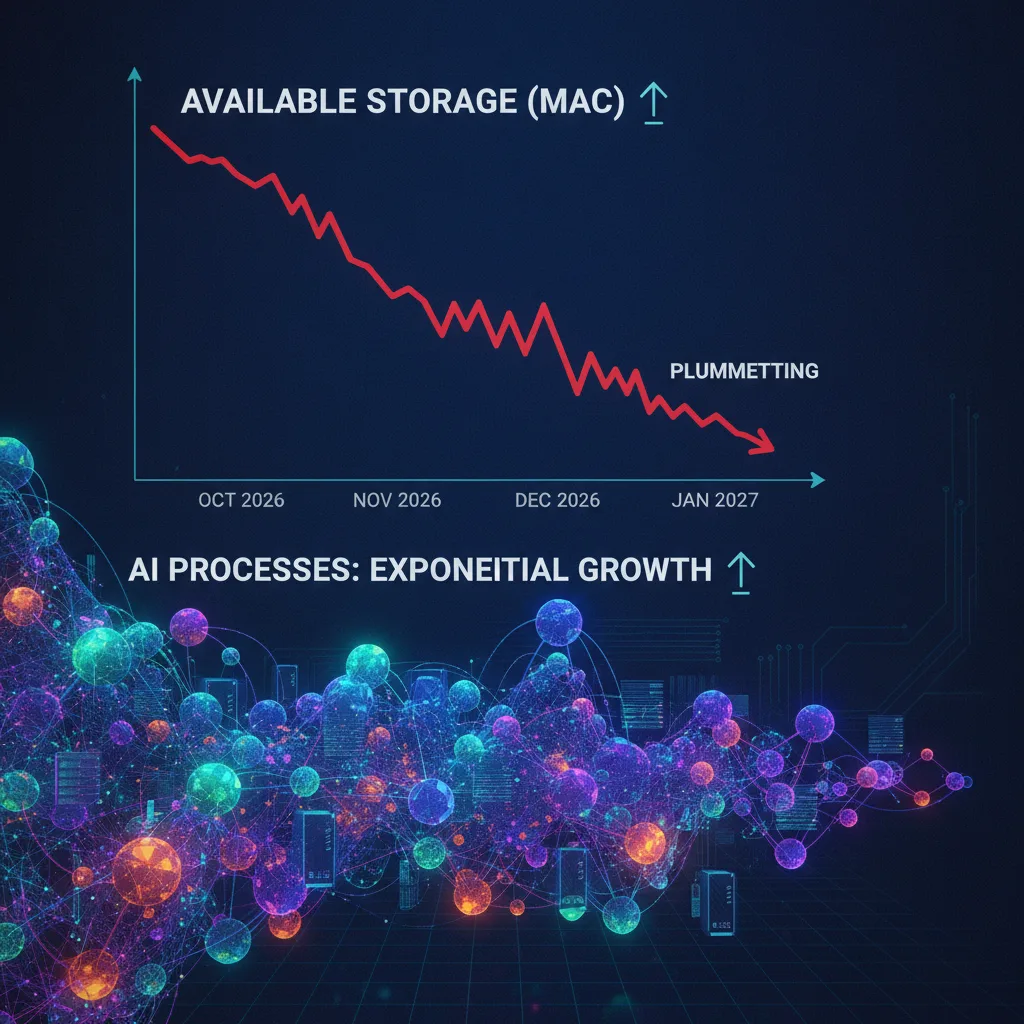
Regular monitoring helps you make informed decisions about your digital footprint and notice when something is taking more space than it should.
The Uncomfortable Truth
The era of "intelligent" devices is upon us, but intelligence may come at a cost.
The promise of an AI that works seamlessly in the background, enhancing our lives without us ever noticing, could turn into a system that silently consumes our finite resources.
This isn't just about storage; it's about the relationship we have with our technology.
Are we so eager for AI convenience that we'll let our devices become black boxes, silently consuming resources we paid for, all in the name of a "smarter" experience we didn't explicitly ask for?
What's your take on this hidden cost of Apple Intelligence, or is it just me who feels like my Mac is quietly being eaten from the inside out?